Planned and recorded
In Data Center, combine capacity views, booking imports and Jira worklog synchronization.
See the plan. Review the workload.
Spend less effort on the tasks around the work.
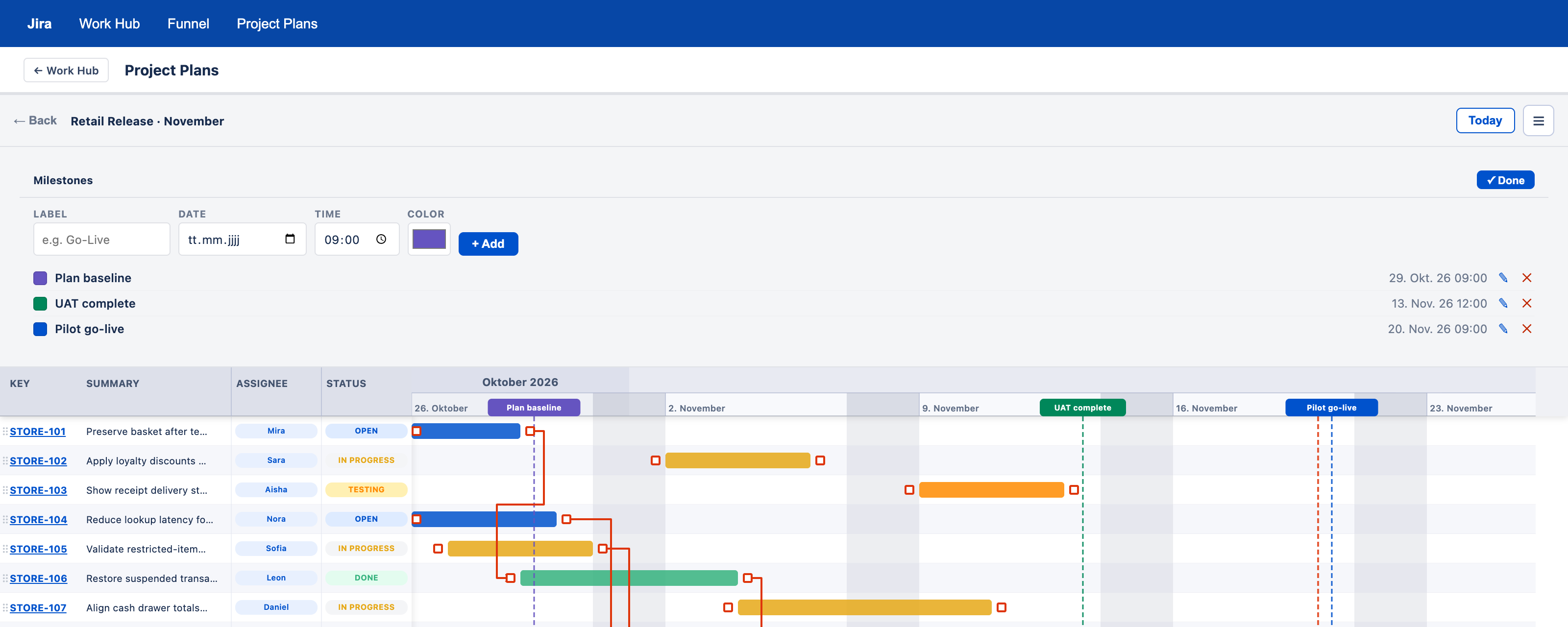
Bring tasks, milestones, phases and dependencies onto a shared timeline. See how the work connects without piecing the plan together ticket by ticket.
Discover Project PlansConfigure projects, fields and Jira searches once, then use the view to review workload and service performance.
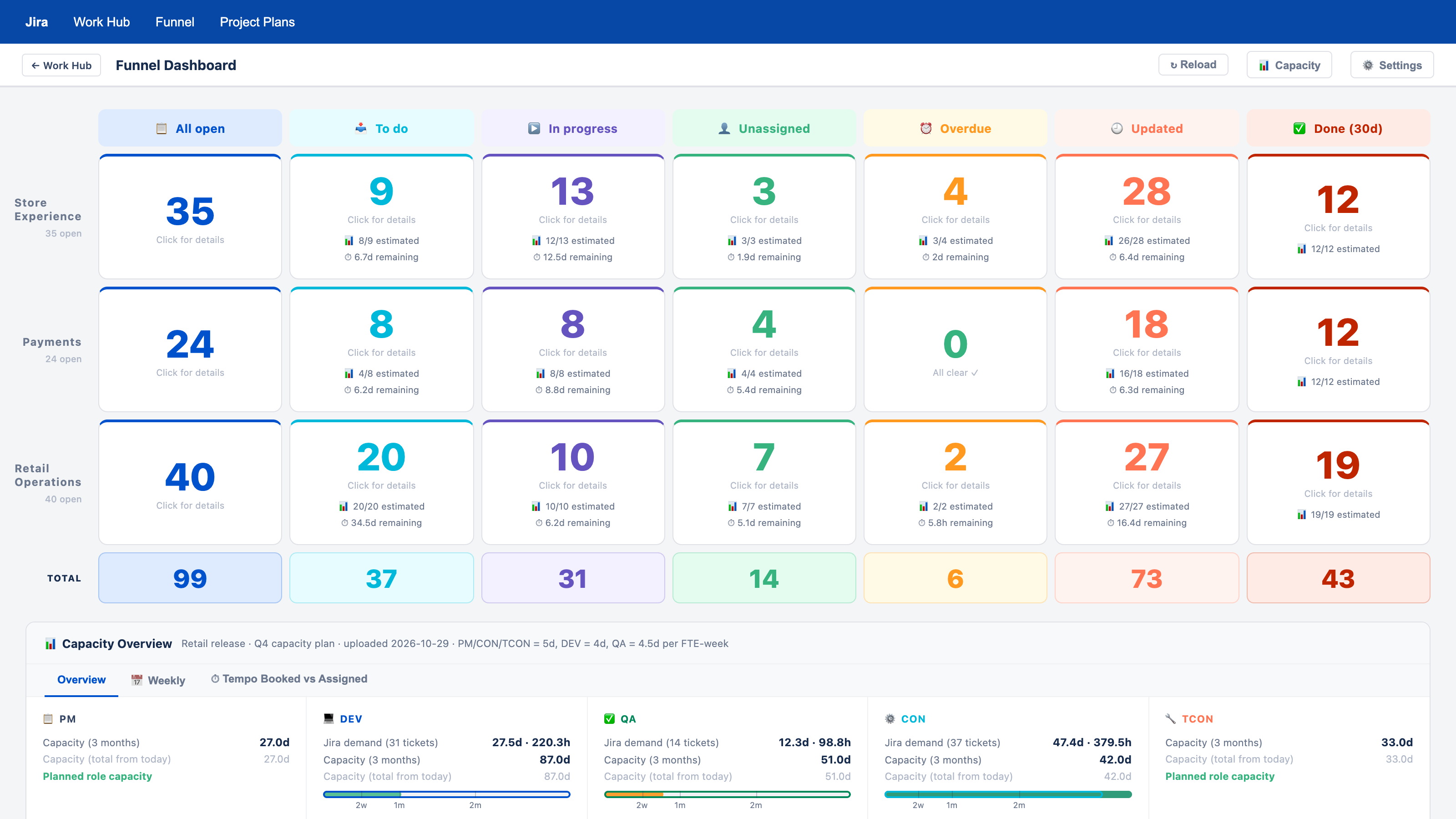
Compare planned capacity by role or skill. Import a supported Excel planning export or Jira and Tempo booking CSV files, then review capacity alongside recorded work.
Explore capacity and bookingsIn Data Center, combine capacity views, booking imports and Jira worklog synchronization.
Review next week’s capacity and copy a summary to share with your team.
In Cloud, booking history you explicitly synchronize stays private and is excluded from shared solutions.
Review service workload with configurable SLA analytics. Data Center queues show issue age, priorities, status, creation trends and completion duration.
Assess probability and impact, review treatment and ownership, and keep open risks visible alongside the work.
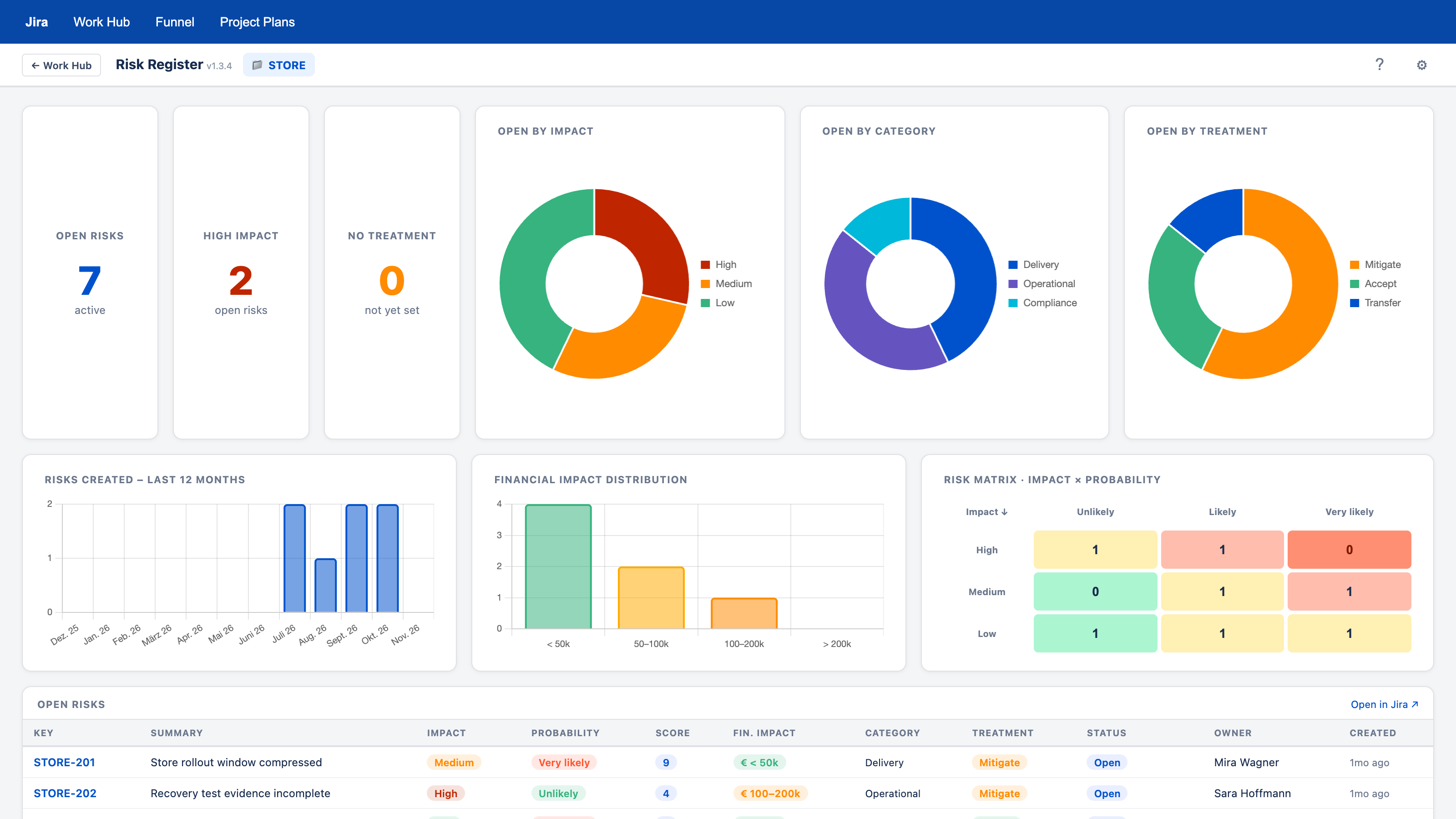
Use Risk Overview to review financial exposure by role. Configure project scopes and approval limits to highlight risks that need attention.
Review financial risk bands across projects visible to your Jira account.
In Data Center, highlight risks that exceed a role’s configured financial limit.
Track work against Jira issues and create worklogs. In the browser edition, review a daily summary of your own ticket changes and comments.
2 comments · Status changed to In progress
09:10 · Status changed from Open to In progress
10:35 · Added a review comment
14:20 · Added a follow-up comment
Tracking and booking workflows differ by edition. Cloud supports manual Jira worklog creation.
The Comment permission checker warns when someone you mention cannot read a restricted Jira comment.
In the browser add-on, see the affected people and the comment restriction. Keep the restriction or switch to All Users before the comment is posted.
If the browser checker cannot verify access, it stops the comment from being posted.
Optionally enable automatic visibility correction and prepare new comments with a greeting and signature.
Cloud provides an issue-panel assistant and visibility handling after a comment is saved. It cannot stop every comment submitted through Jira’s own screens.
Comment visibility and issue access are separate. Making a comment visible to All Users does not grant access to a restricted Jira issue.
Explore the Comment permission checkerChoose relevant labels without rebuilding the same list. In Cloud, the full controls are in the Work Hub issue panel.
Prepare comments in the Cloud issue panel, with contextual hints and visibility handling. Integration with Jira’s own screens is more limited.
Explore everyday assistanceKeep your preferred settings. Storage and synchronization differ by edition.
Work with the issues and projects your Jira account can access. Work Hub does not grant extra Jira access.
Share supported settings and plans with your team. In Data Center, export a plan as CSV, PNG or PowerPoint for your next review.
Choose people, groups or project audiences, assign view and edit roles, and review activity history.
The browser edition keeps plans local. Team-sharing controls are available through the Jira apps, with different mechanisms in each edition.
Tell us which Jira tasks should be easier. We’ll discuss the edition, deployment and company licence that fit your work.
Request a company licence